A thought, beautifully written.
Choose your font and text size. Add color, emphasis, numbered lists or checklists. Your edits save as you go.
1. A little walk before work
2. Bring the book for Emma
3. Call home at 6:30 PM
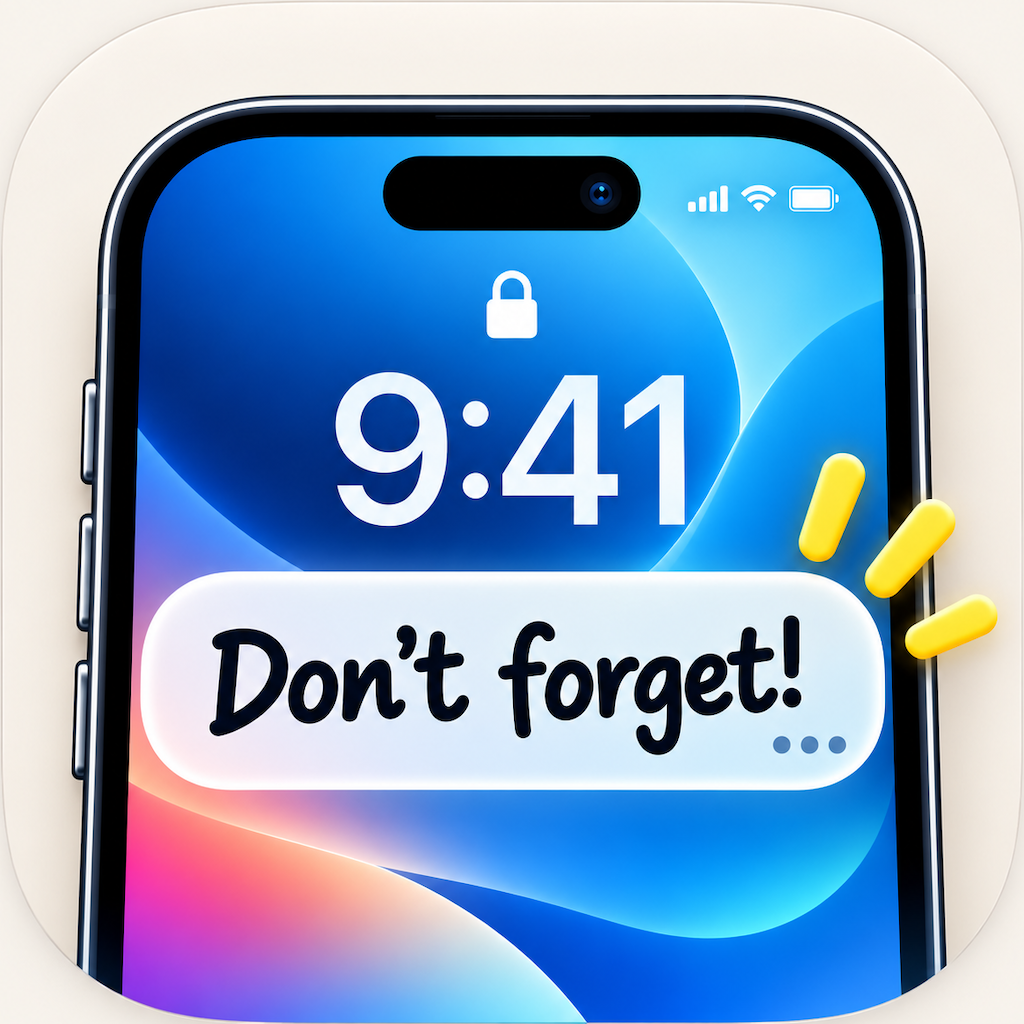 Lock Screen Notes
A little note. A little less to remember.
The grocery list. That one thing to bring. A little encouragement. Keep what matters on your iPhone Lock Screen.
For iPhone · iOS 17 or later
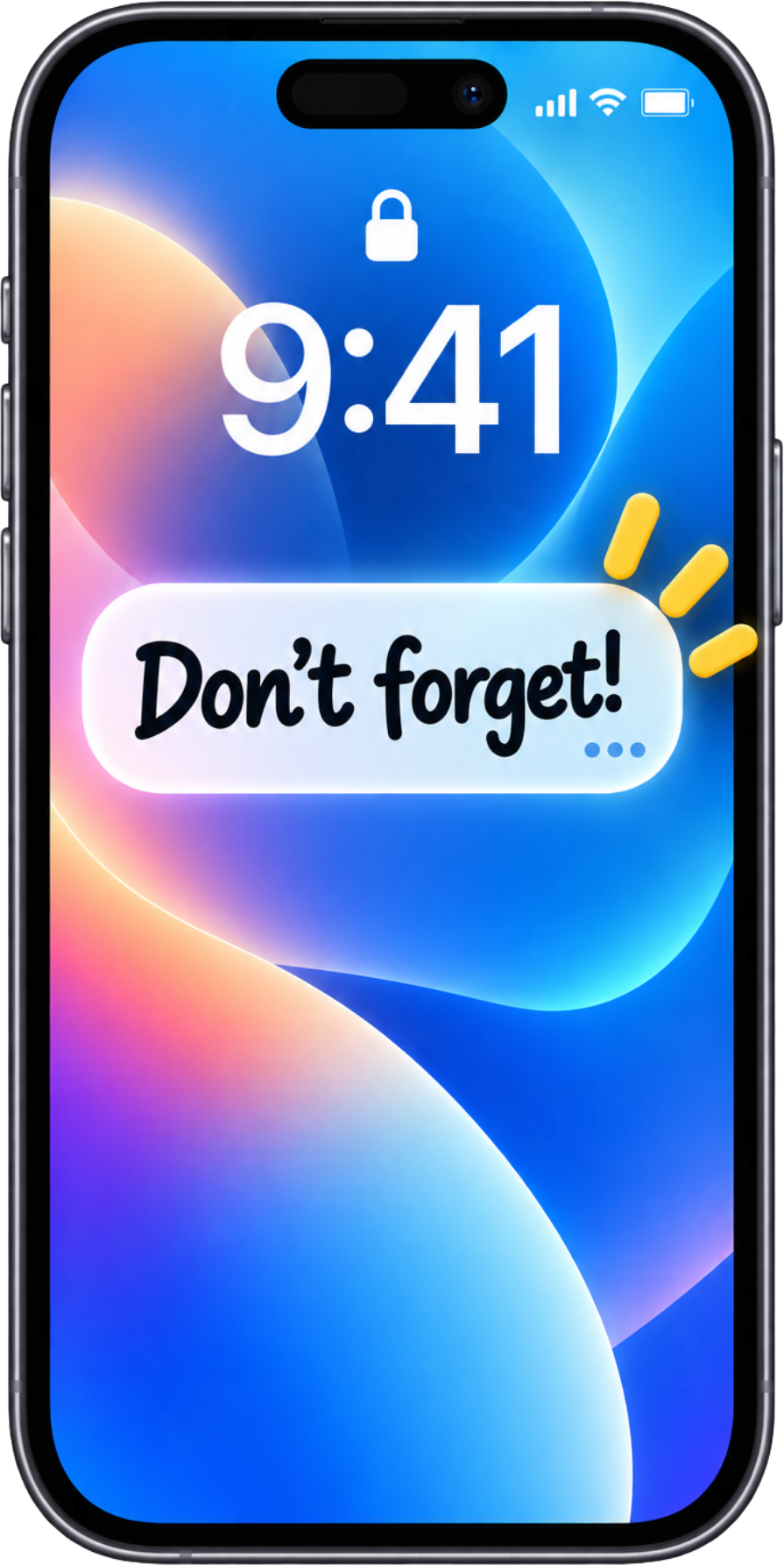
One thing at a time.
You’ve got this.
Small notes. Everyday possibilities.
A familiar, simple space to write it down, make it yours, and keep it close.
Choose your font and text size. Add color, emphasis, numbered lists or checklists. Your edits save as you go.
1. A little walk before work
2. Bring the book for Emma
3. Call home at 6:30 PM
Put your current note on the Home Screen with a widget. Use a Live Activity to keep it visible on the Lock Screen.
Your note. Your style.
Soft paper, neat grids, a splash of color. Pick a background that feels right and adjust its opacity to suit your note.
Try a style. This web preview is illustrative; the final appearance depends on your wallpaper.
A gentle reminder:
make time for the
little things.
From a thought to your Lock Screen
A few simple steps to keep your next note where you’ll see it.
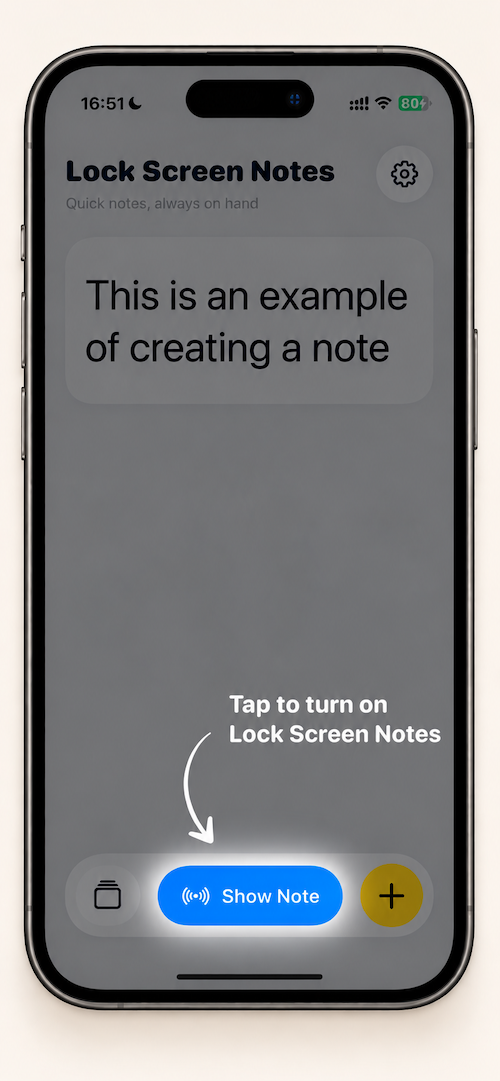
Tap +, write a short note, then tap the checkmark. Choose Show Note when prompted.
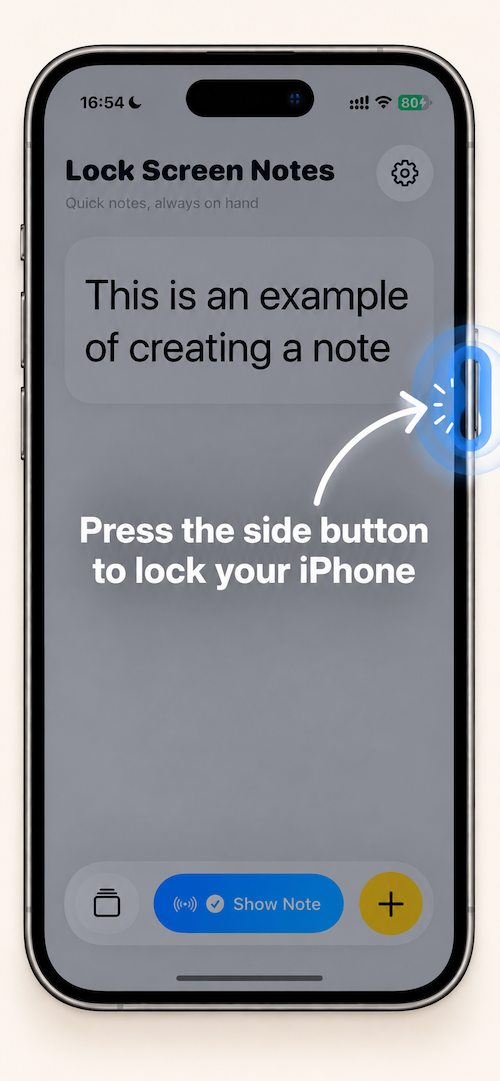
Tap Show Note on the main screen. Press your iPhone’s side button to lock the screen.
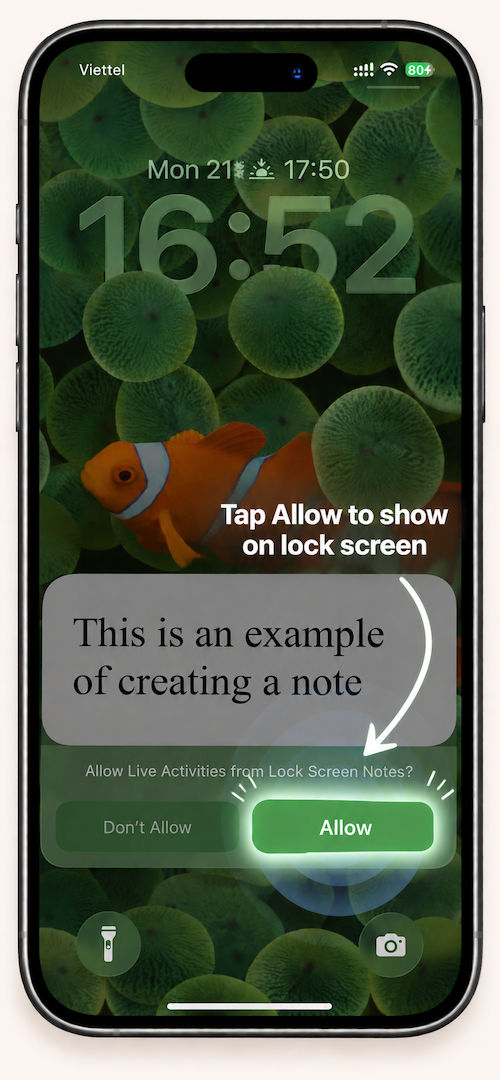
Your note appears as a Live Activity. Tap it to return to the app and edit.
Enable Live Activities in iPhone Settings if prompted. Availability and duration are managed by iOS. Dynamic Island is available on compatible iPhones.
A little help, when you need it
Have a question, found a problem, or have an idea? Send us a message. Please include your iPhone model and app version if you need technical help.
synodtech@gmail.com ↗Open the app and tap Show Note. If Live Activities are disabled, enable them in the app’s iPhone Settings. iOS can end a Live Activity; open the app to show your note again.
Touch and hold an empty area of your Home Screen, open the widget gallery, search for Lock Screen Notes, and choose a widget size. Select your current note inside the app.
Tap the note to open the editor, then tap a checklist item to mark it done. Checklist editing happens inside the app.
No account is required. Your notes are stored on your device. You can keep multiple notes and choose one to display at a time.
Quick notes, always on hand.